
Click The Above Banner
To Join Wayne's Blues and MIDI Performer's Group Forum!
Welcome to my corner!
And welcome to Sequencing 101: MIDI Editors First Look
We're about to view a few MIDI editors. See what they look like.
What they do! Don't be intimidated. We'll go step by step in the
actual workshop! We'll make and edit some "blah" MIDIs into great
sounding tracks!
So let's take a look at some editors. While they will all be, and look
a little different, they all do exactly the same things. And really do
look about the same. As far as the 'words' go. The names of the
functions are the same.
Like, text editors, right? They all do the same thing. Notepad. Or
maybe you have some software that has a built-in text editor. Like
scrolling text editors for lyrics and chords, etc. All do the same thing.
But maybe just slightly differently.
Same thing with MIDI editors. Think about it. The basics can all be done
on every MIDI editor. And because you're doing the same thing on each
editor (if for some reason you wanted to edit a MIDI using different software)
then guess what? You DO the same thing in each editor.
Some editors offer more functions. But they ALL do the basics. One might
use one icon to indicate something, and another editor might use a different
icon. But you should be able to figure out what the icon stands for. Plus you
can hover your mouse over almost ANY icon in ANY software and it'll tell you
what it's for?
OK, I'm going to walk you round a typical editor.
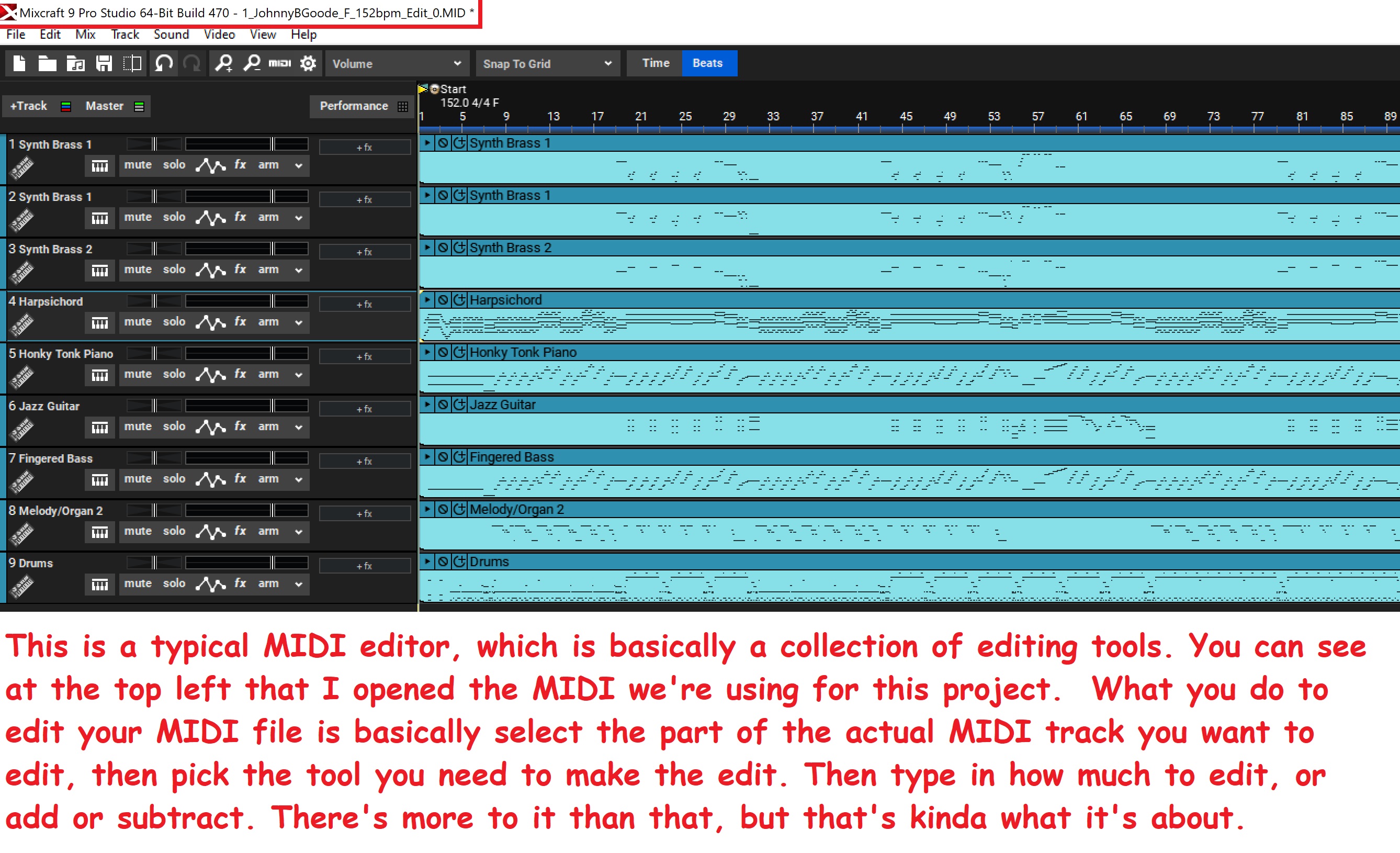
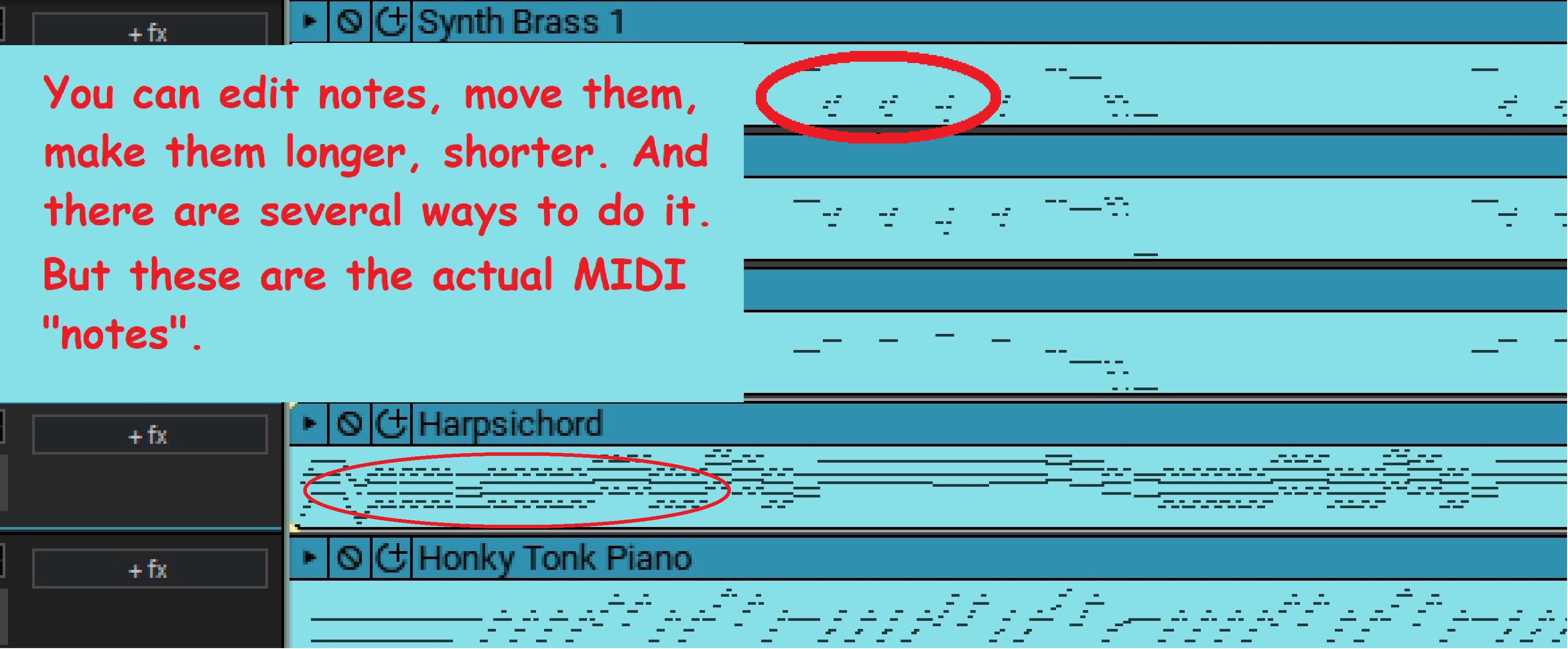
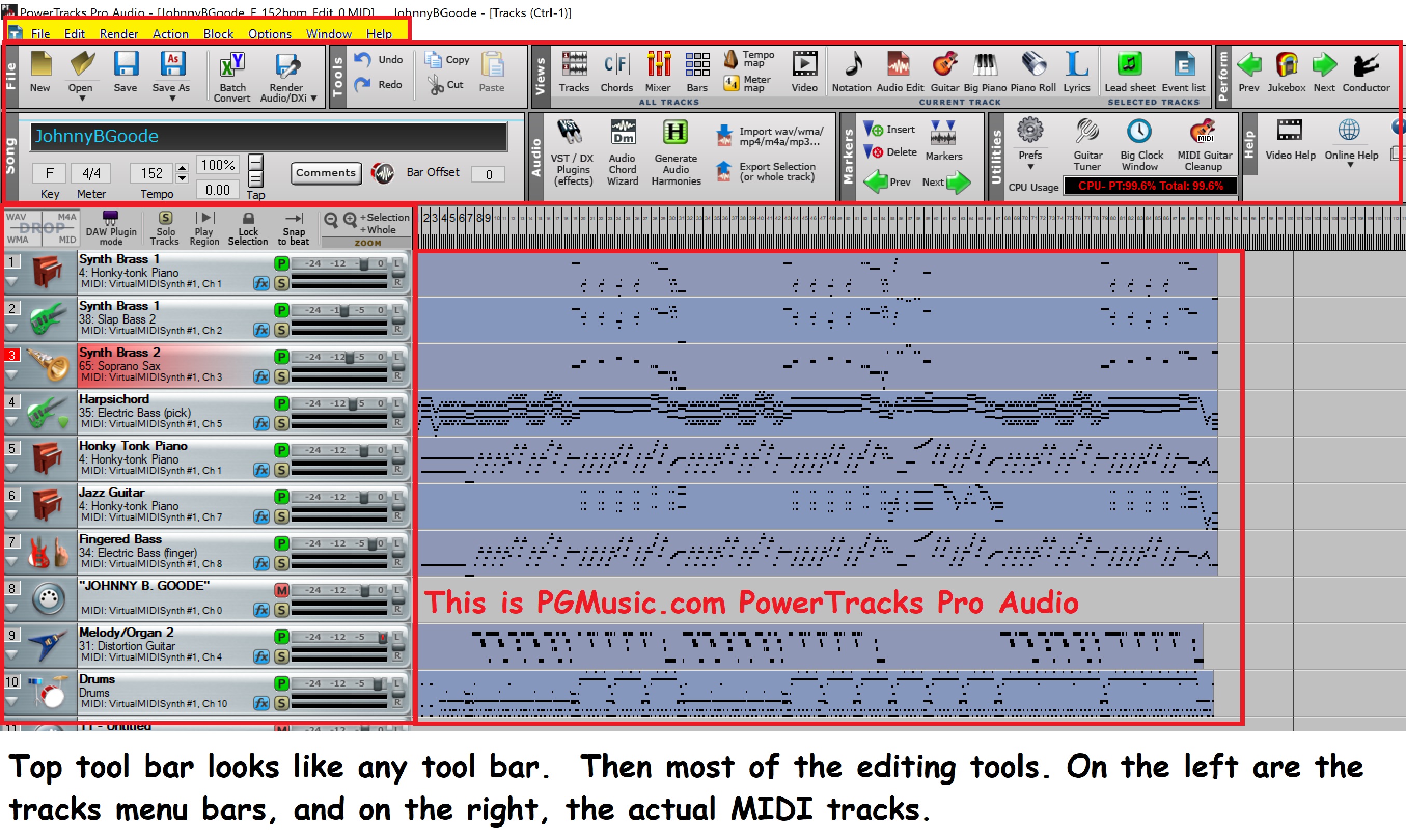
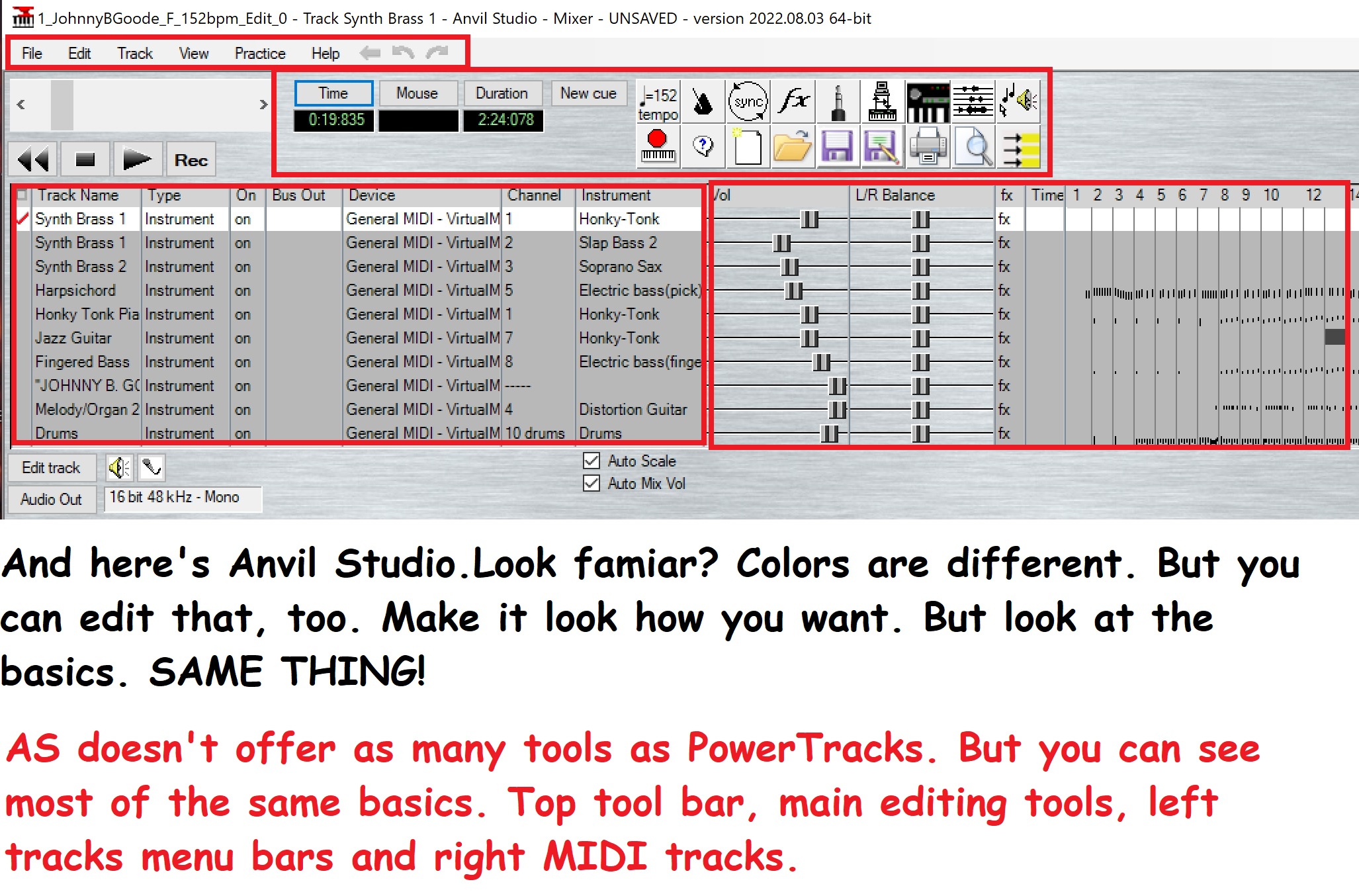
OK, let's take a look at the editing tools, and program layout of 3 typical editors.
PowerTracks Pro Audio, Anvil Studio and Acoustica Mixcraft.
Here's PowerTracks.
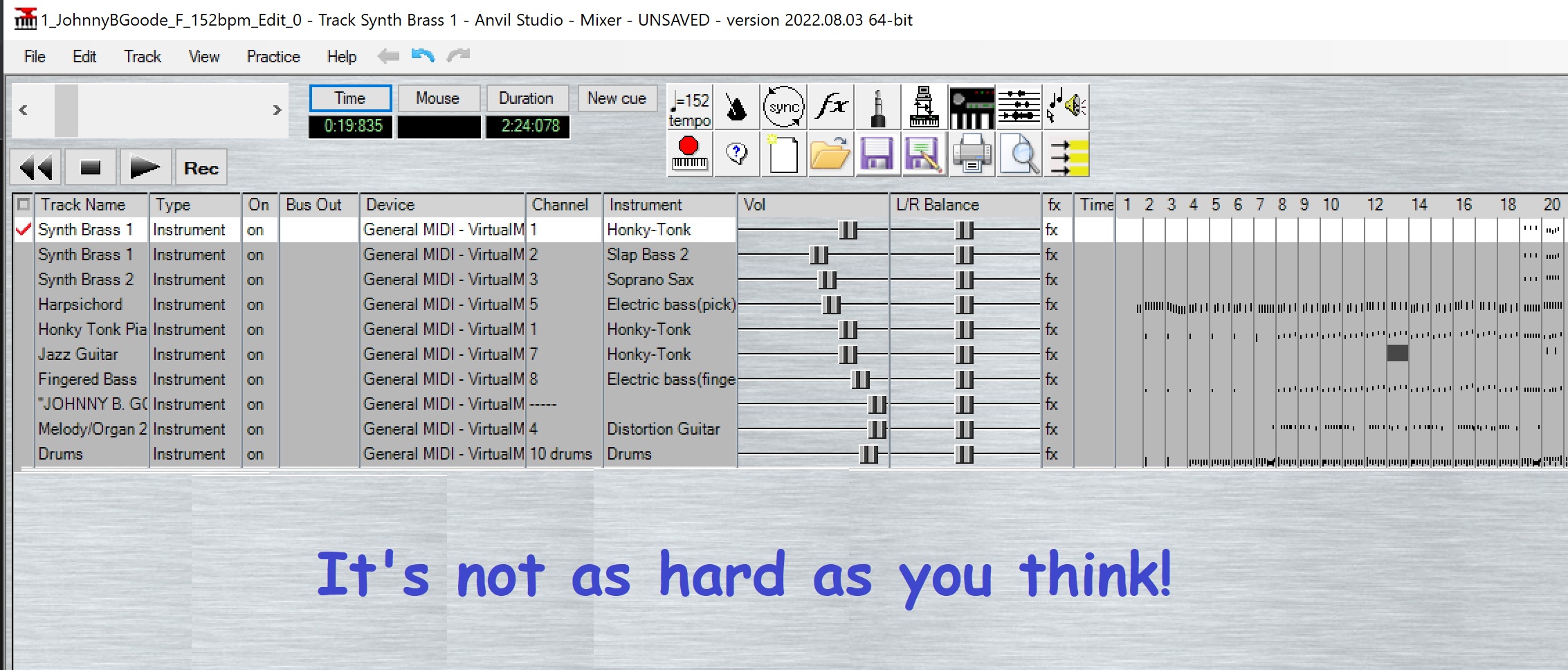
This is Anvil Studio's main interface.
And here is Mixcraft.
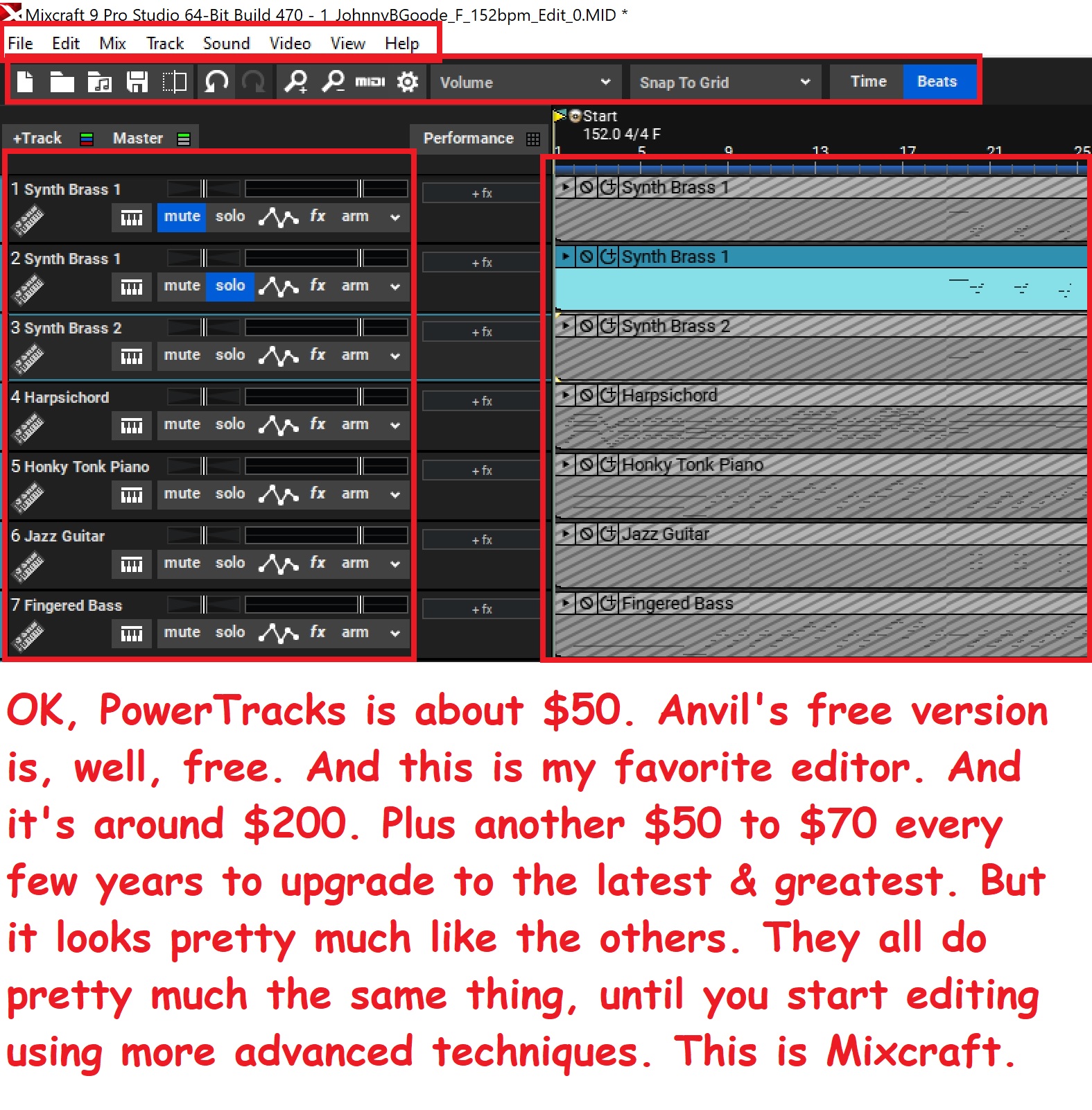
All pretty similar. The biggest difference is the colors and design/appearance
of the interface.
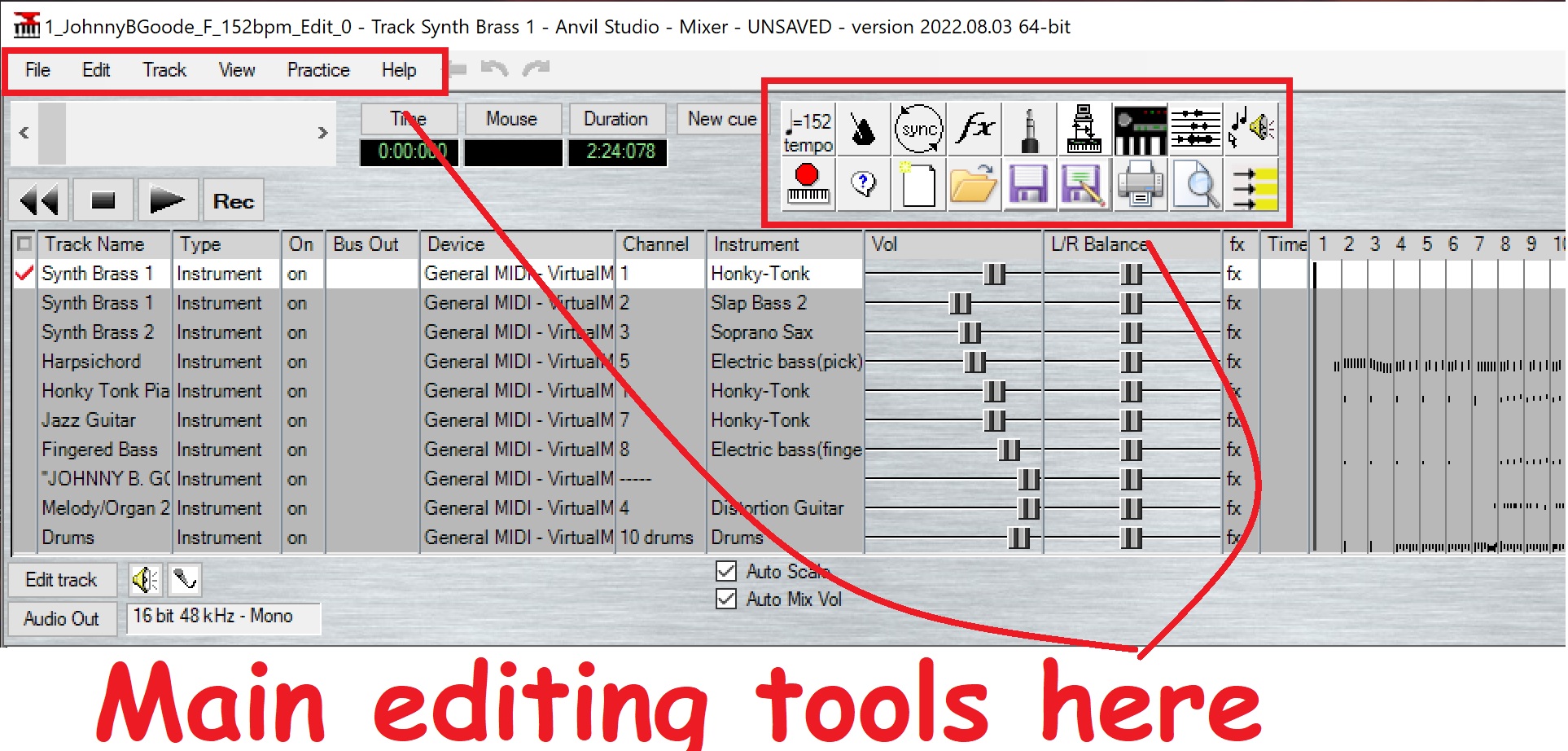
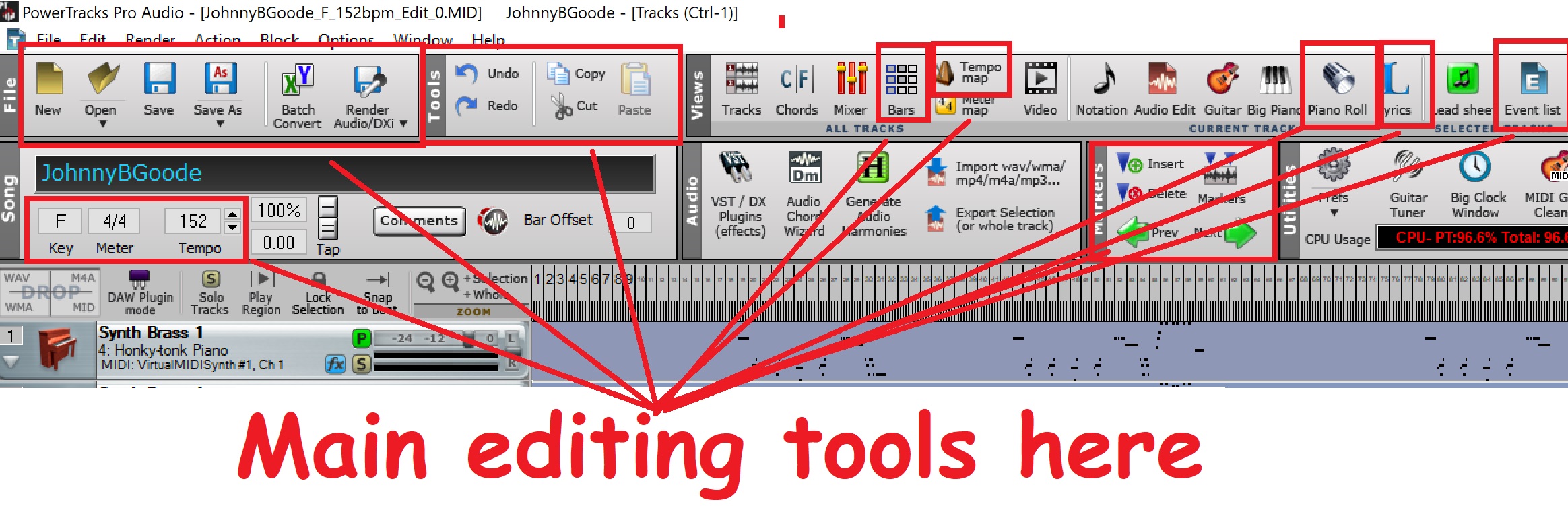
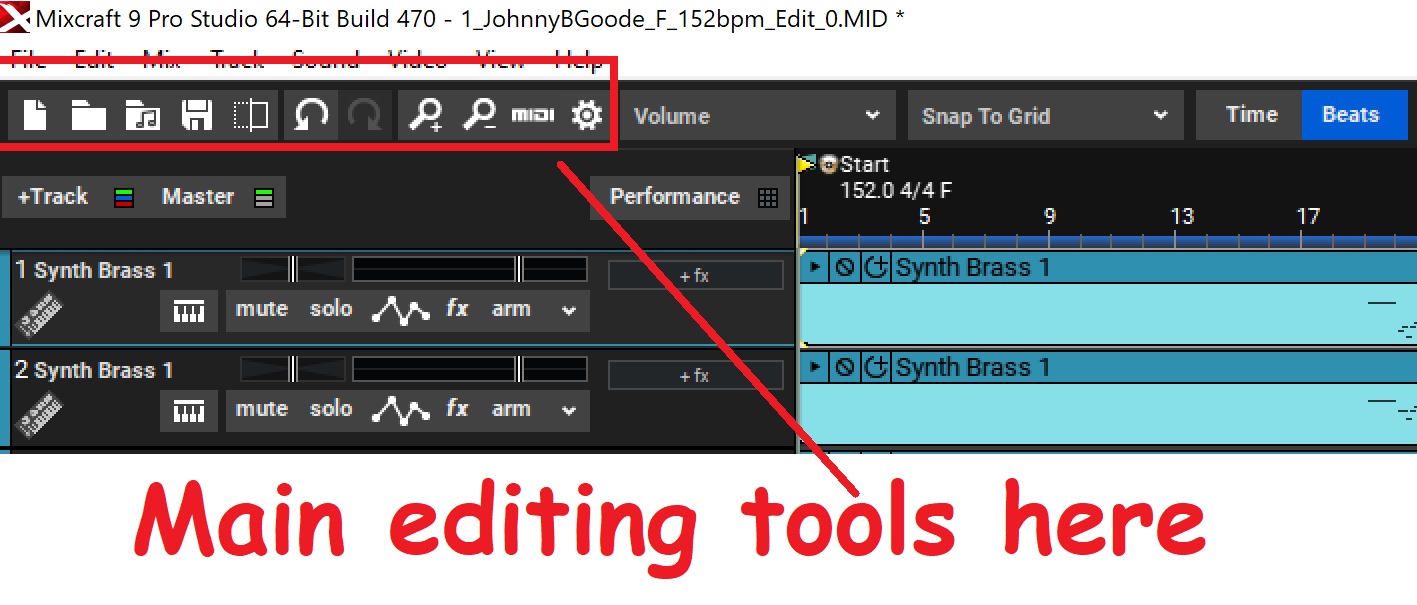
Let's look at the tools and menus just a little bit.
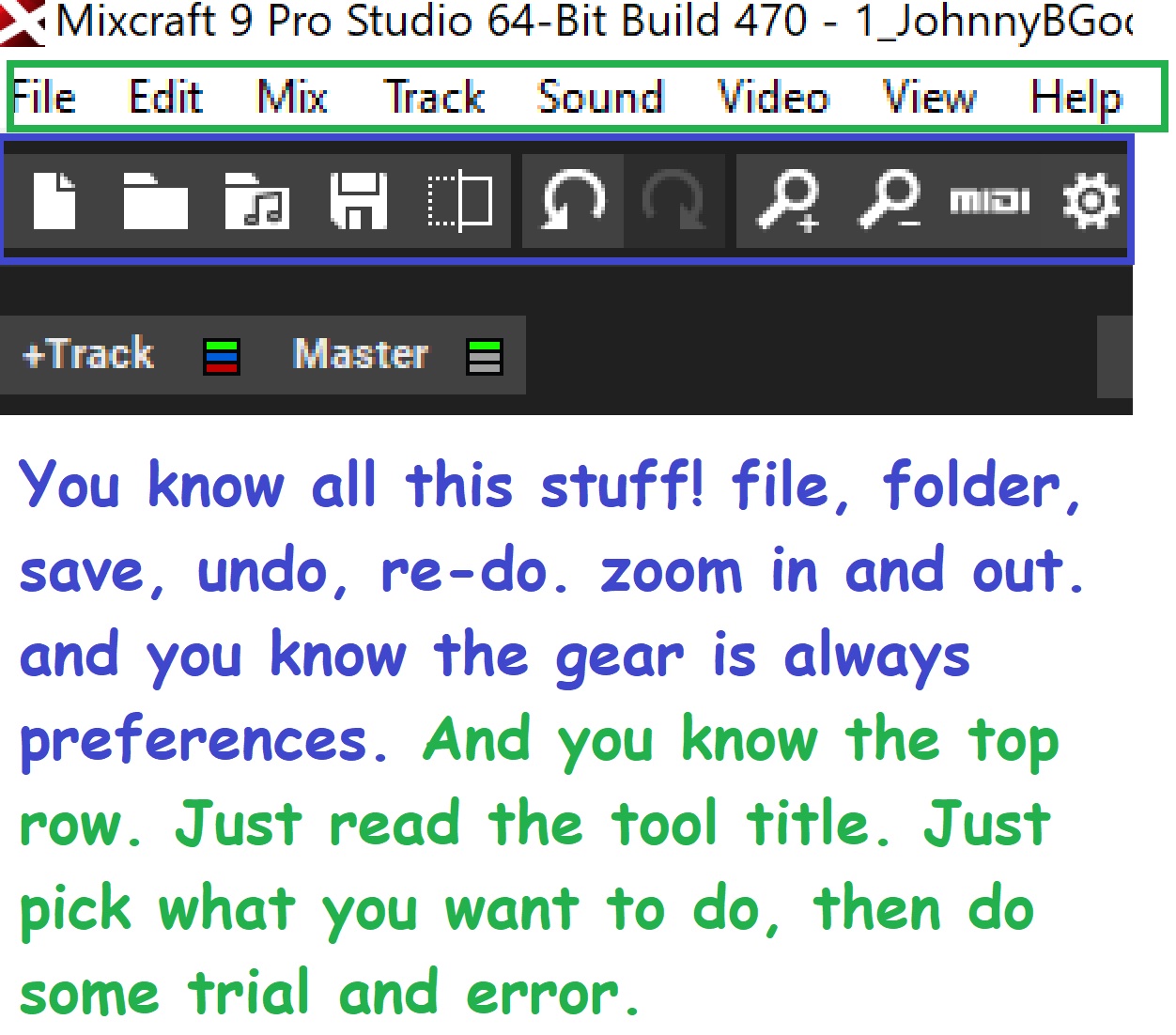
Most editors will look like this...Let's take another closer look.
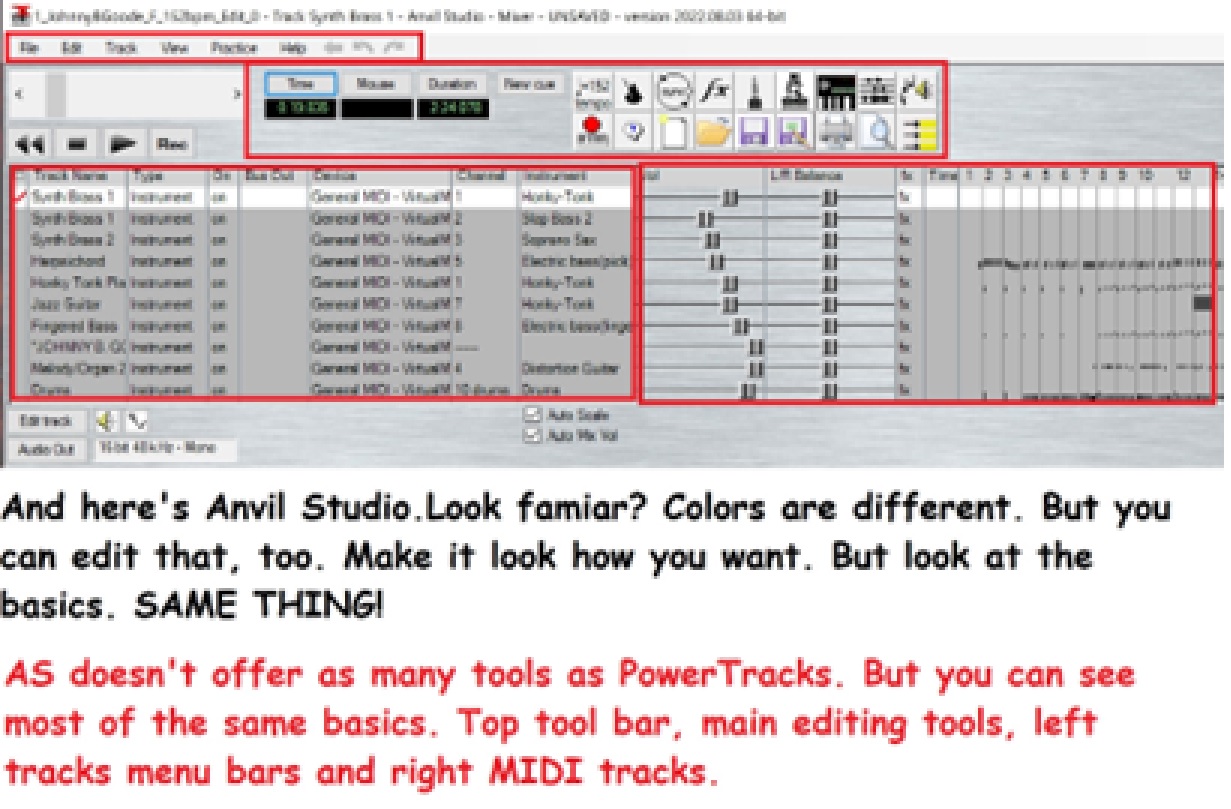
As you can see, they're all really similar. Minor little differences. Anvil
has the volume and panning sliders and FX icon on the right of the tracks
menu. PowerTracks has volume, pan and FX as part of the tracks menu.
But they both have them. And they're all in nearly the same place.
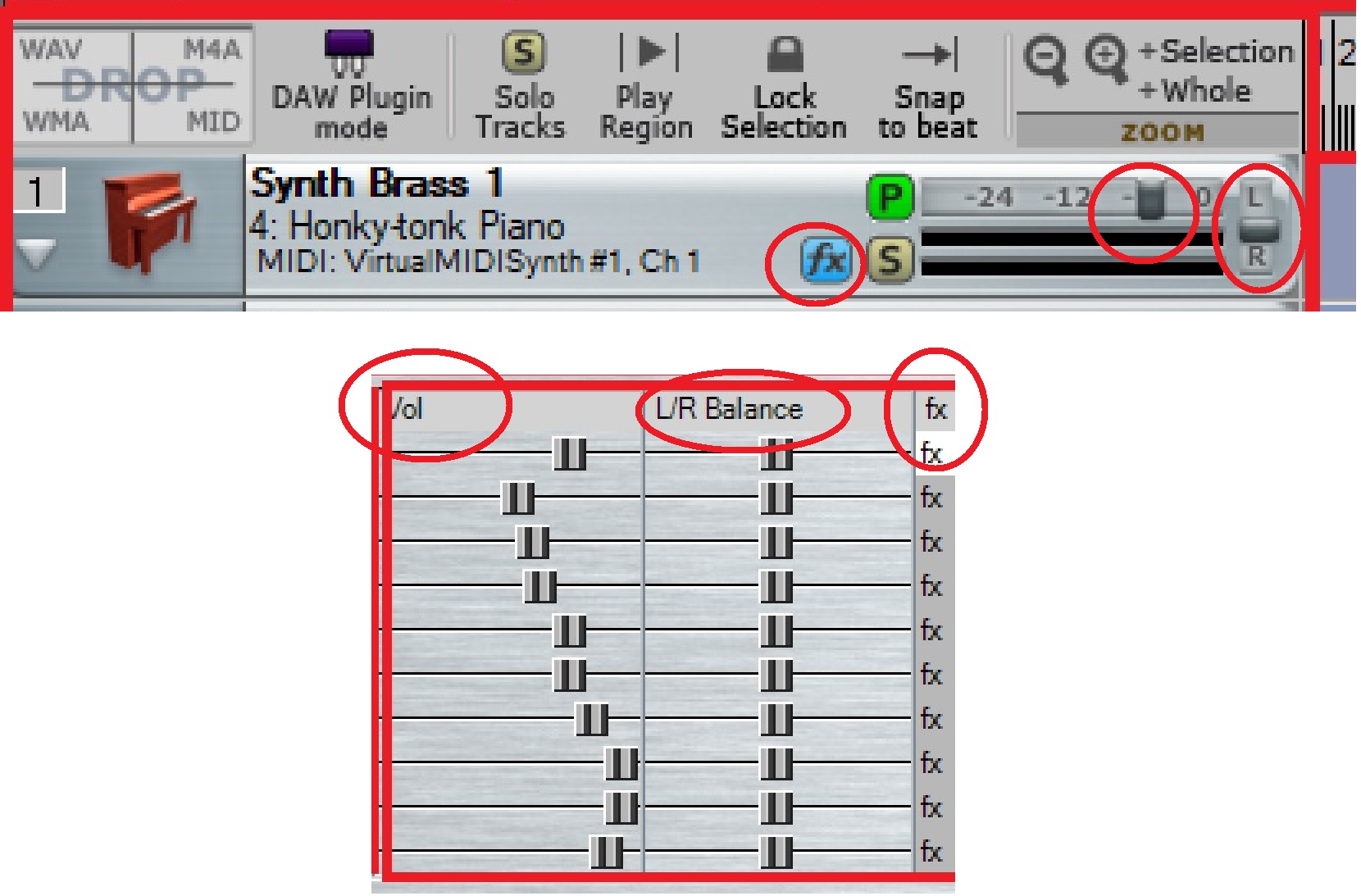
icons in the main tracks menu, but calls them Solo and Play. 'P' changes to 'M'
(mute) when clicked. Mixcraft has them in about the same place.
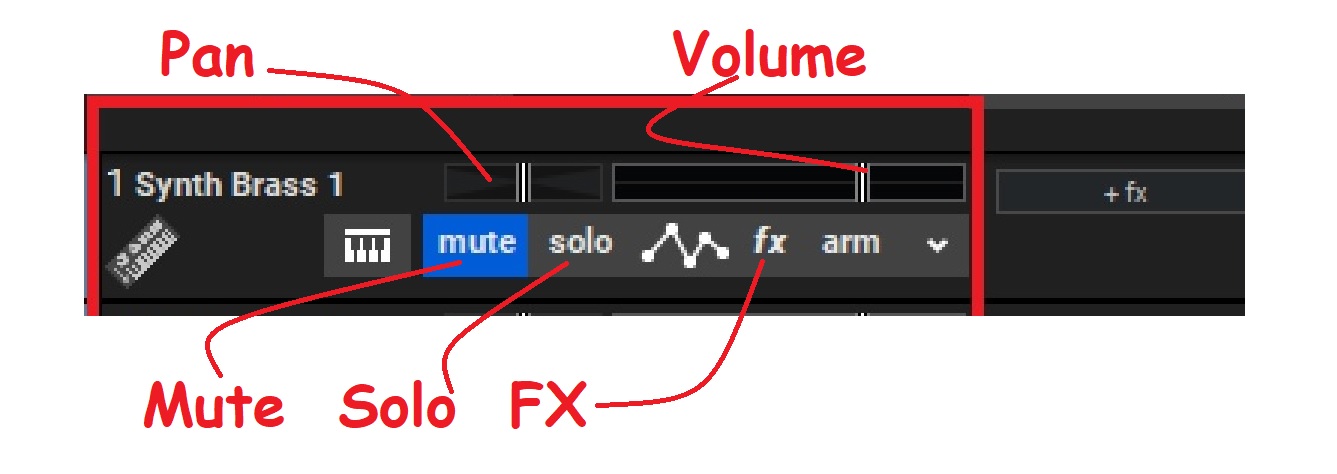
So you have the usual top tool bar like almost any software.
And it starts with . . . FILE. Been there, right!
Under the top tool bar will be your main tools section. A good
chunk of the tools you need will be there.
Then under the main tools section the screen will be split into
2 main sections. The tracks menu section, and the actual MIDI
tracks.
Each track has a menu. All the parameters can be edited for
each track independently. Let's look at a typical track menu.
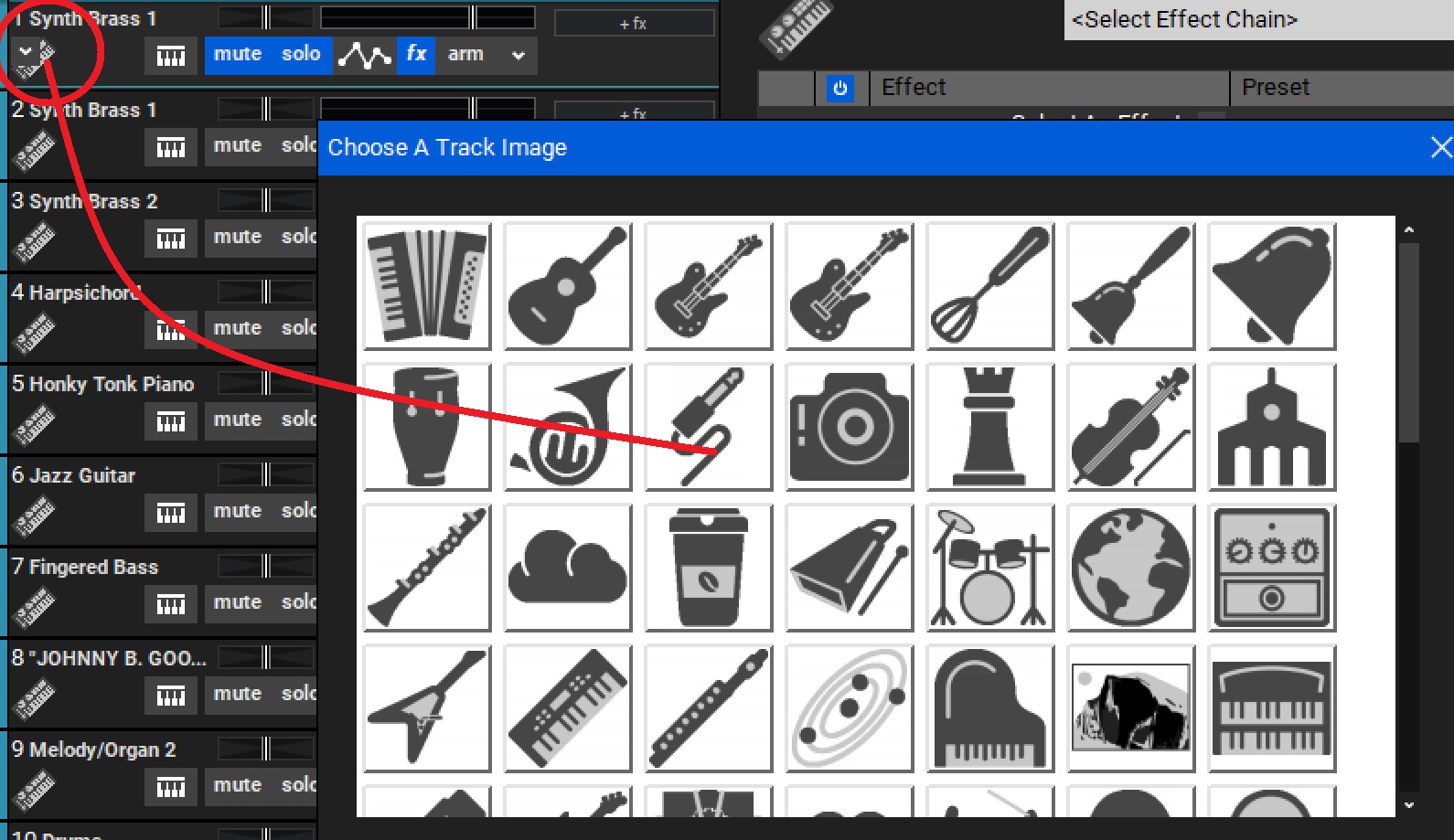
It starts with an icon . . . a picture of a keyboard. Click the icon
and an instrument menu pops up. That's actually what you want
YOUR icon to be for the track. You can just leave it, or select the
icon that matches the instrument you’re using for that track.
Simple, right!?!
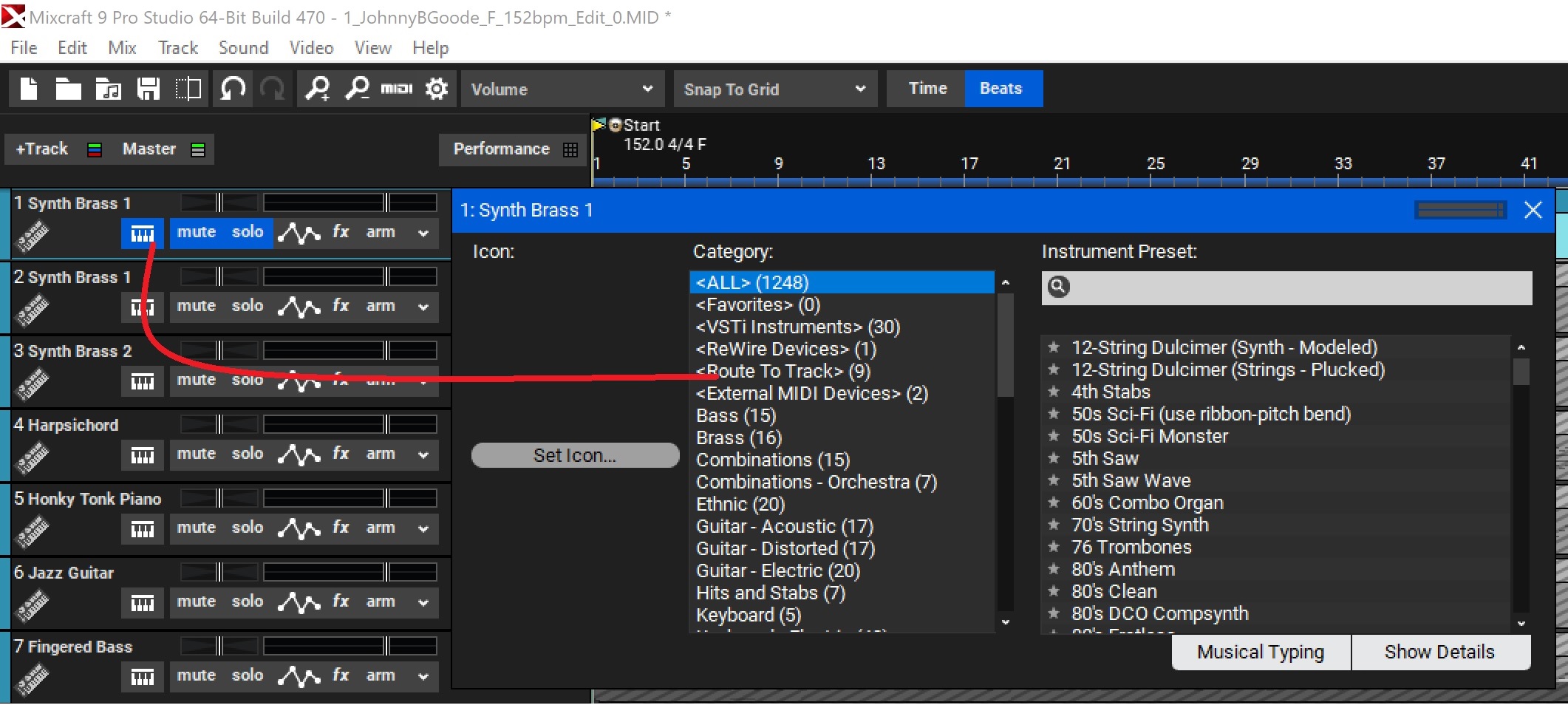
The next icon is another keyboard. Click it and now you have the instrument
list where you can select what instrument you want that track to play. So if
you had a MIDI with an acoustic grand piano for track one, but you wanted
a much mellower sounding piano, you could select maybe a Rhodes electric.
You can see here it's a double menu. You get the drop down menu with
instrument 'types'. If you clicked on 'PIANO' you’d get a couple dozen
piano choices.
OK, you don't need much imagination to figure out the next icons.
Mute obviously mutes the track so it doesn't play. BINGO! So now
you can mute the melody lines in all of your MIDIs so you're not
singing over the melody! Click the Mute icon. Then re-save your file.
You can also delete the track. But maybe you want to keep it in there
in case you need it in the future.
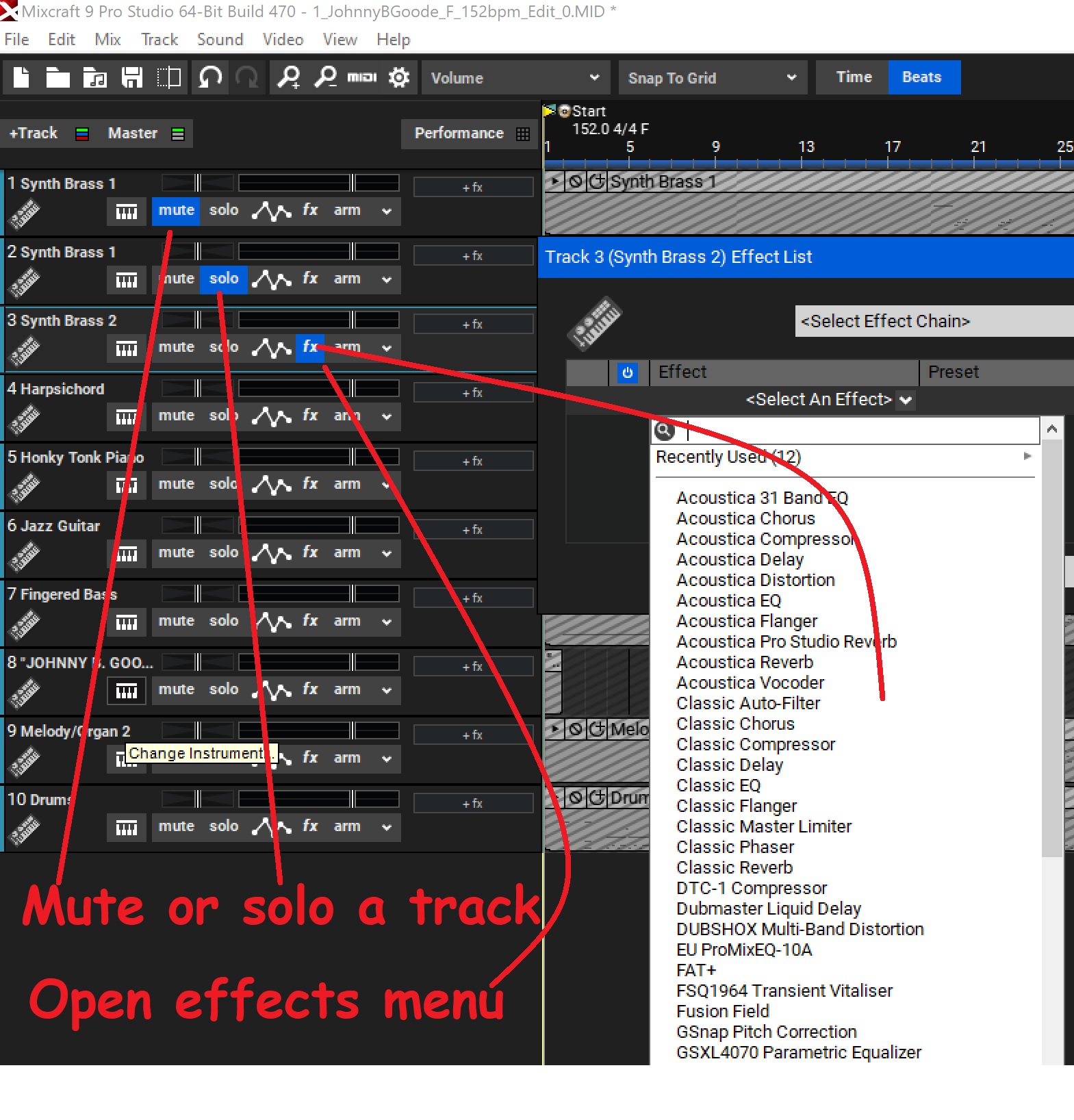
Then there's the Solo icon. Yeah, click it and only that track will play.
You can mute and/or solo multiple tracks.
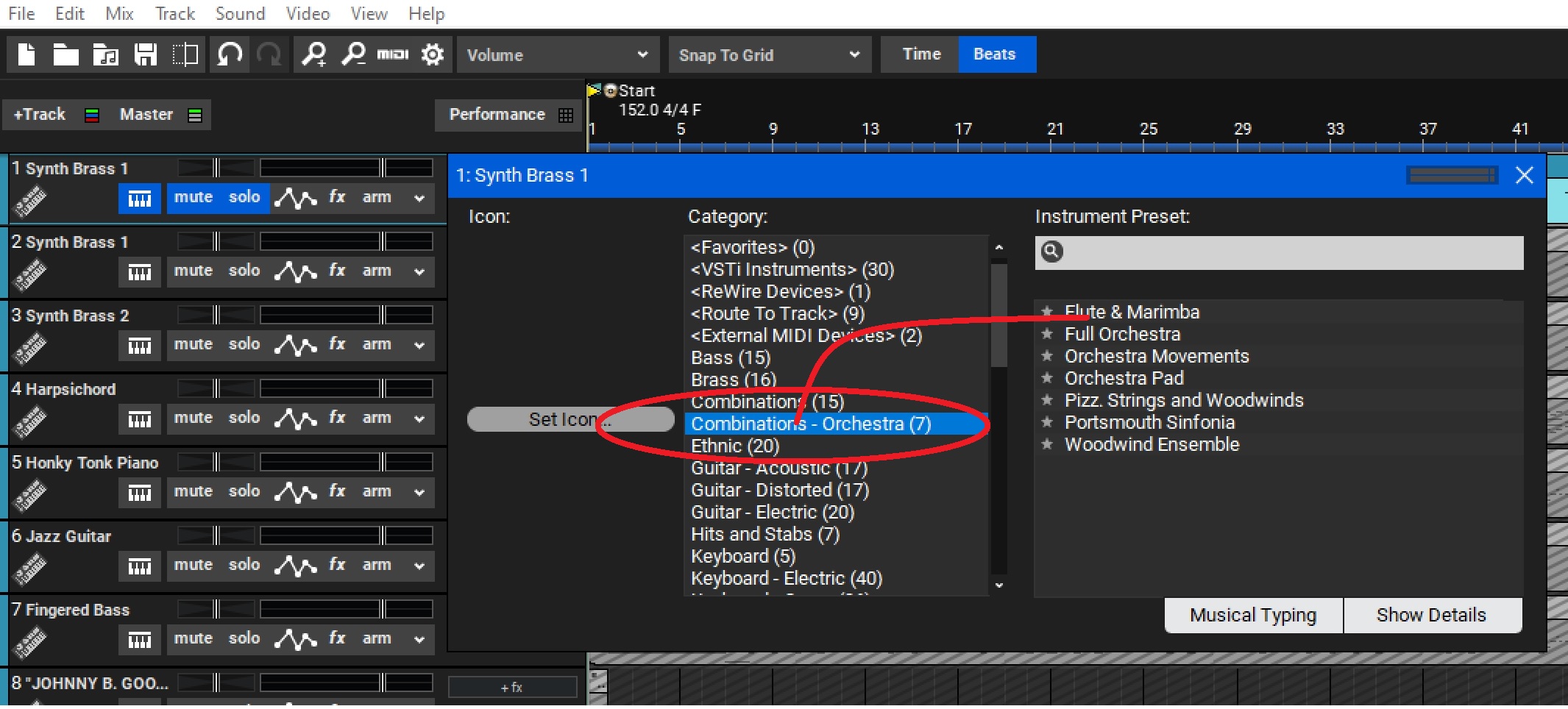
Then there's the FX icon. Ha! Get it? Effects . . . FX! 😊
Yup, click it for a drop down menu of effects. Usually you'll get another
drop down when you select an effect. That'll take you to an edit page for
editing the parameters for that effect.
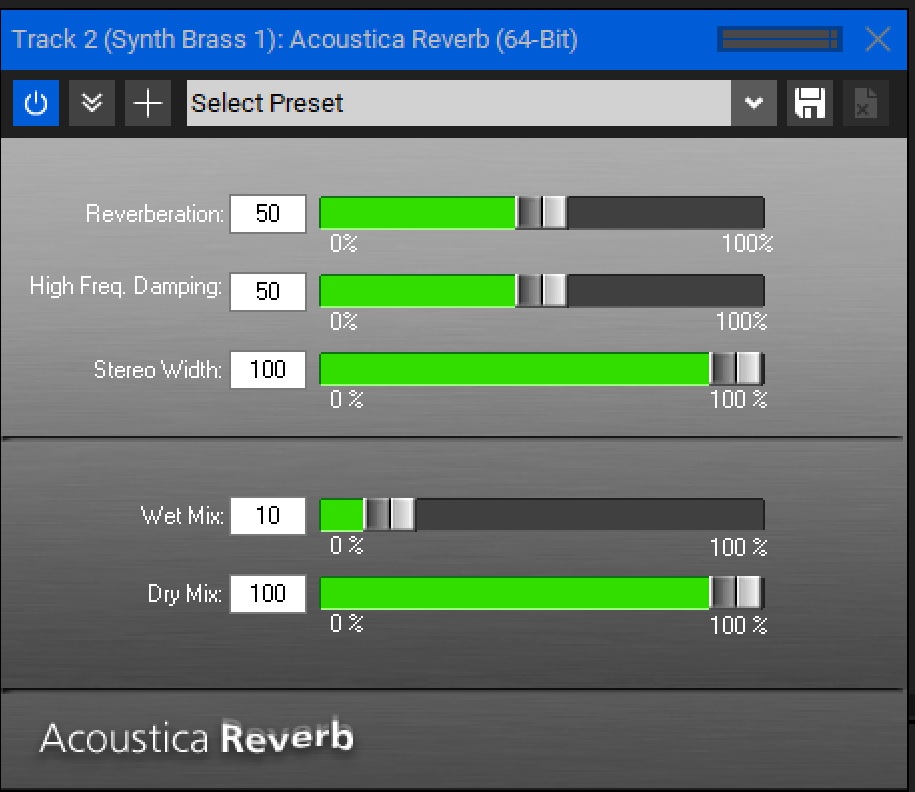
Now you get to learn about editing FX!
And then you have the actual MIDI track.
These are your "notes". Your chords, bass notes, drums. All the stuff you hear.
It's a visual section of the editor where you can see what's going on. A note
is too log? A note is wrong!
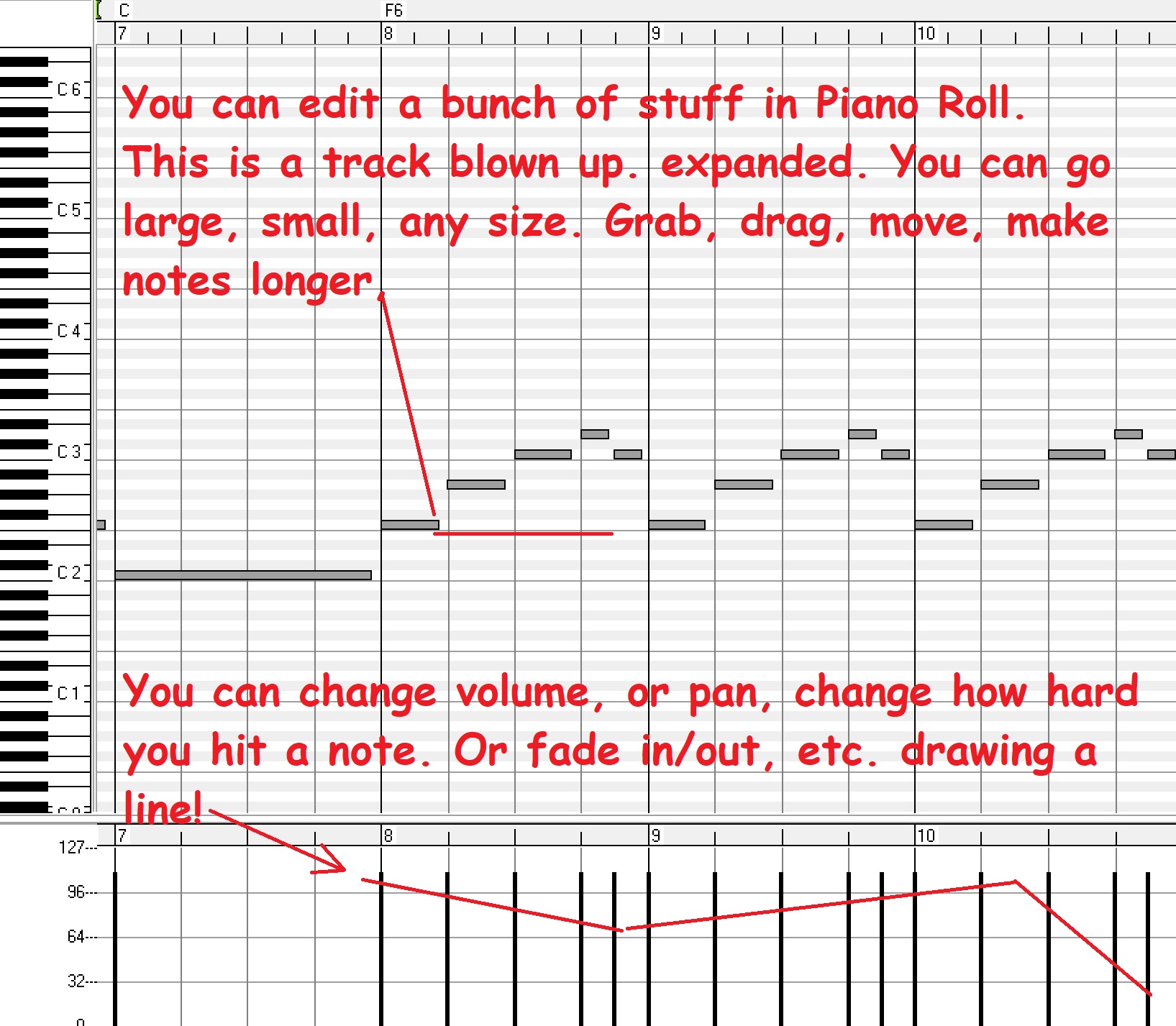
You can do just about aything in here. Make it all larger, smaller. Change the
foreground and background colors. Personalize your editor. You can ZOOM IN!
Zoom out. Add, delete. And it's mostly just "click/grab - drag."
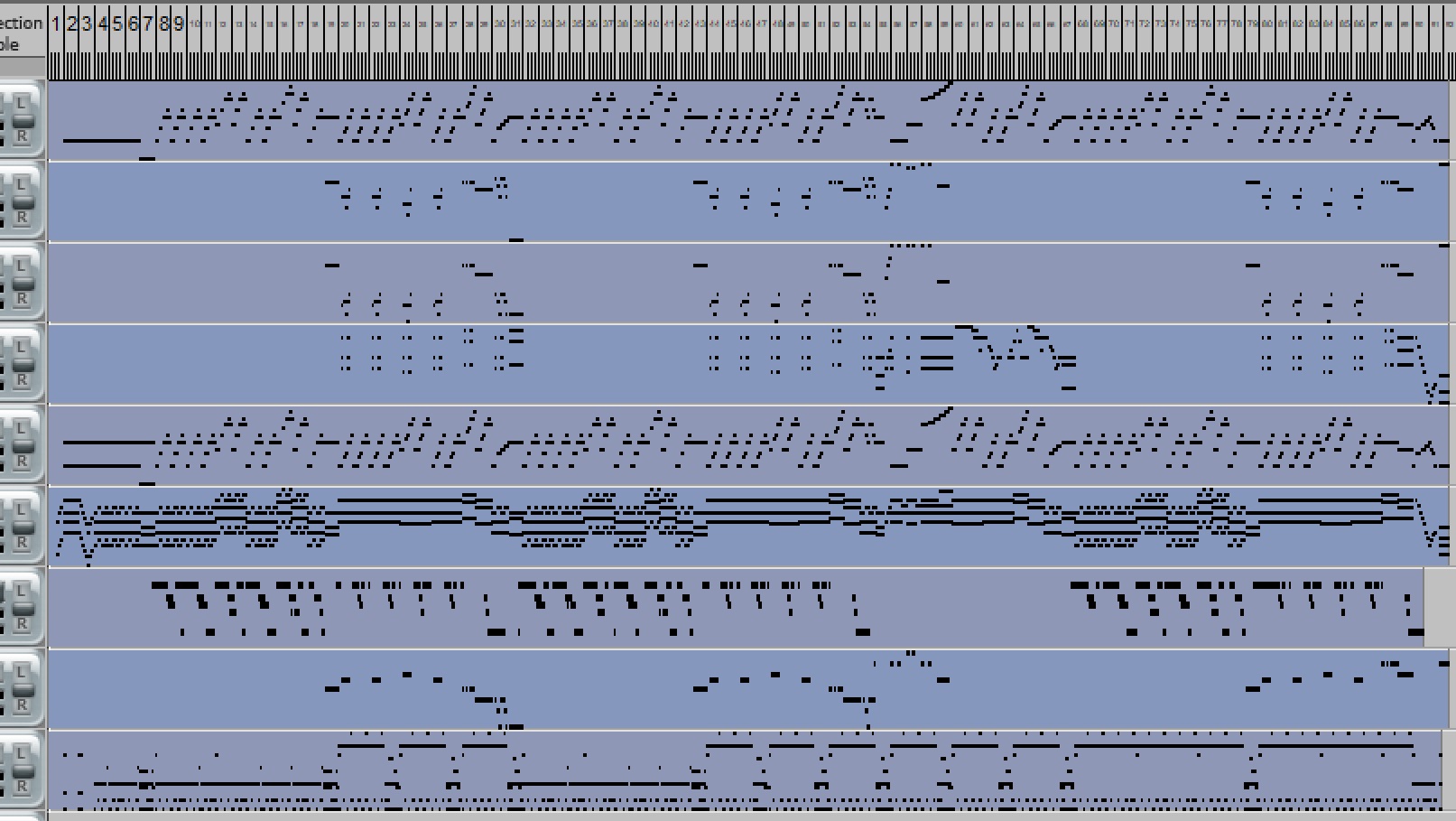
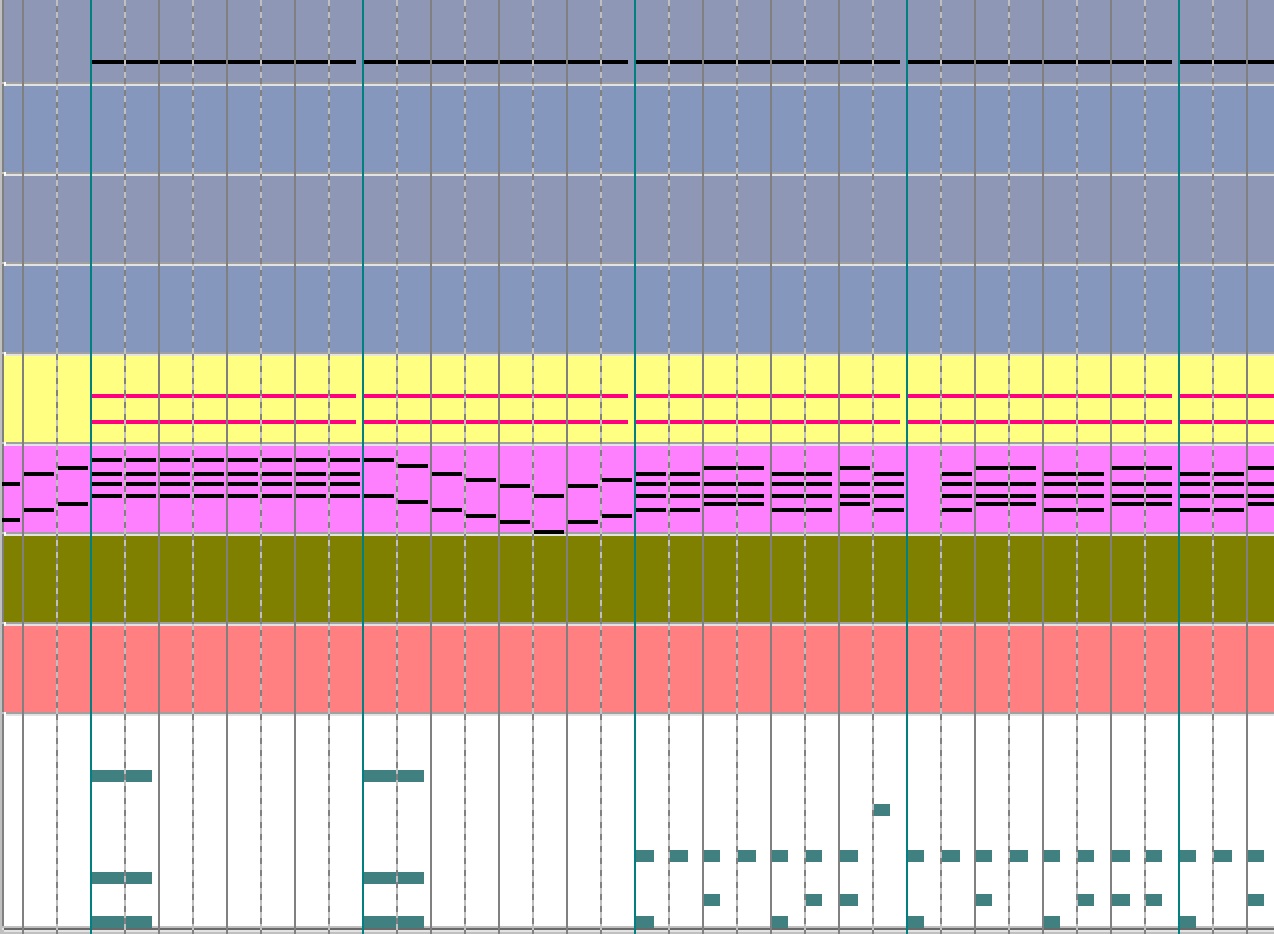
CHANGE THE SIZE
>
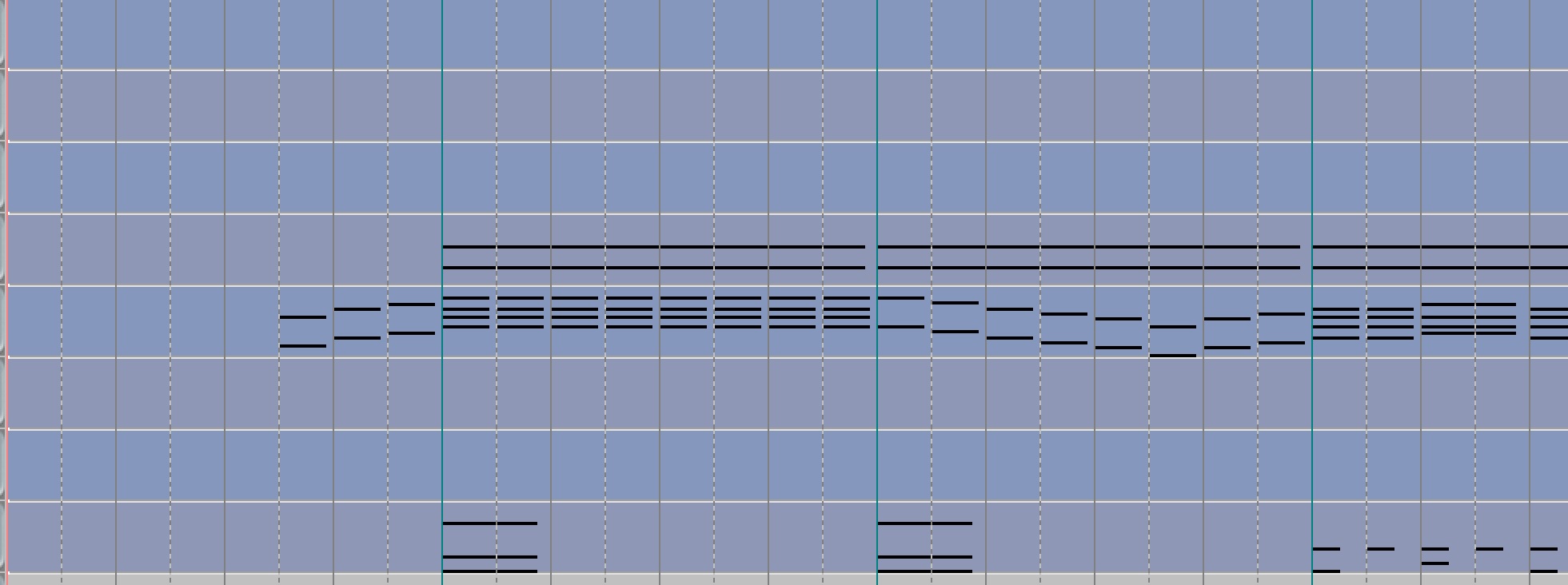
CHANGE THE COLOR
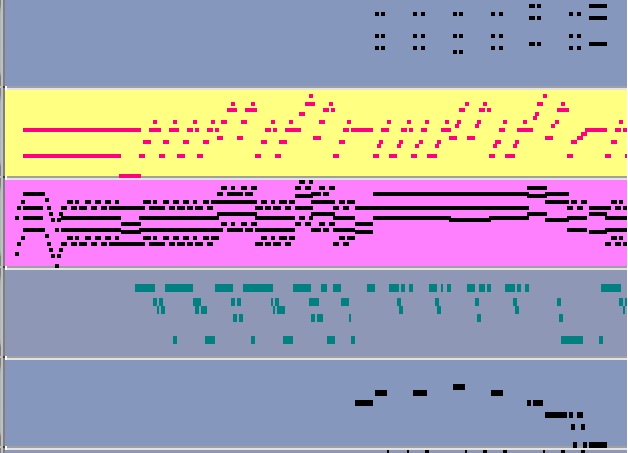
GO TO PIANO ROLL AND GET UP CLOSE!
YOU CAN CHANGE TO ANY COLOR, SIZE, MAKE IT PERSONAL.
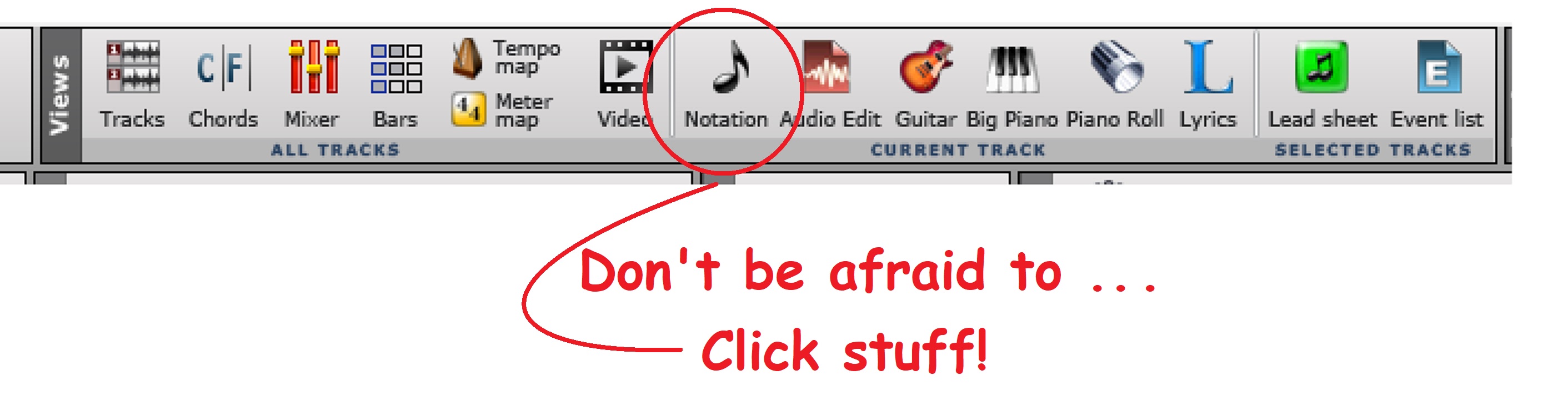
And don't be afraid to try stuff! Trial and error. DO STUFF! That's how you learn!
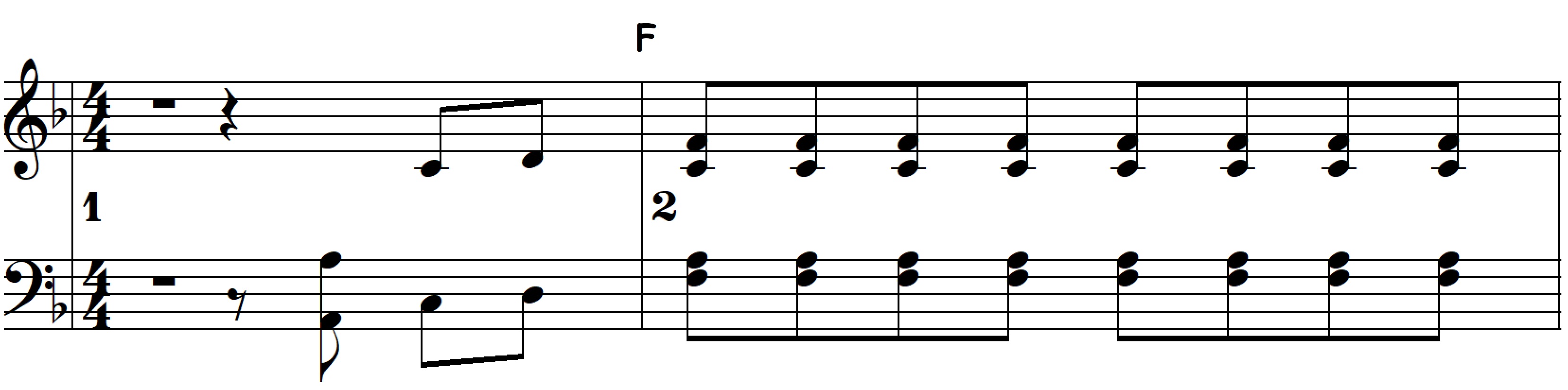
SEE WHAT HAPPENS!
And a couple more things to help put you at ease . . .
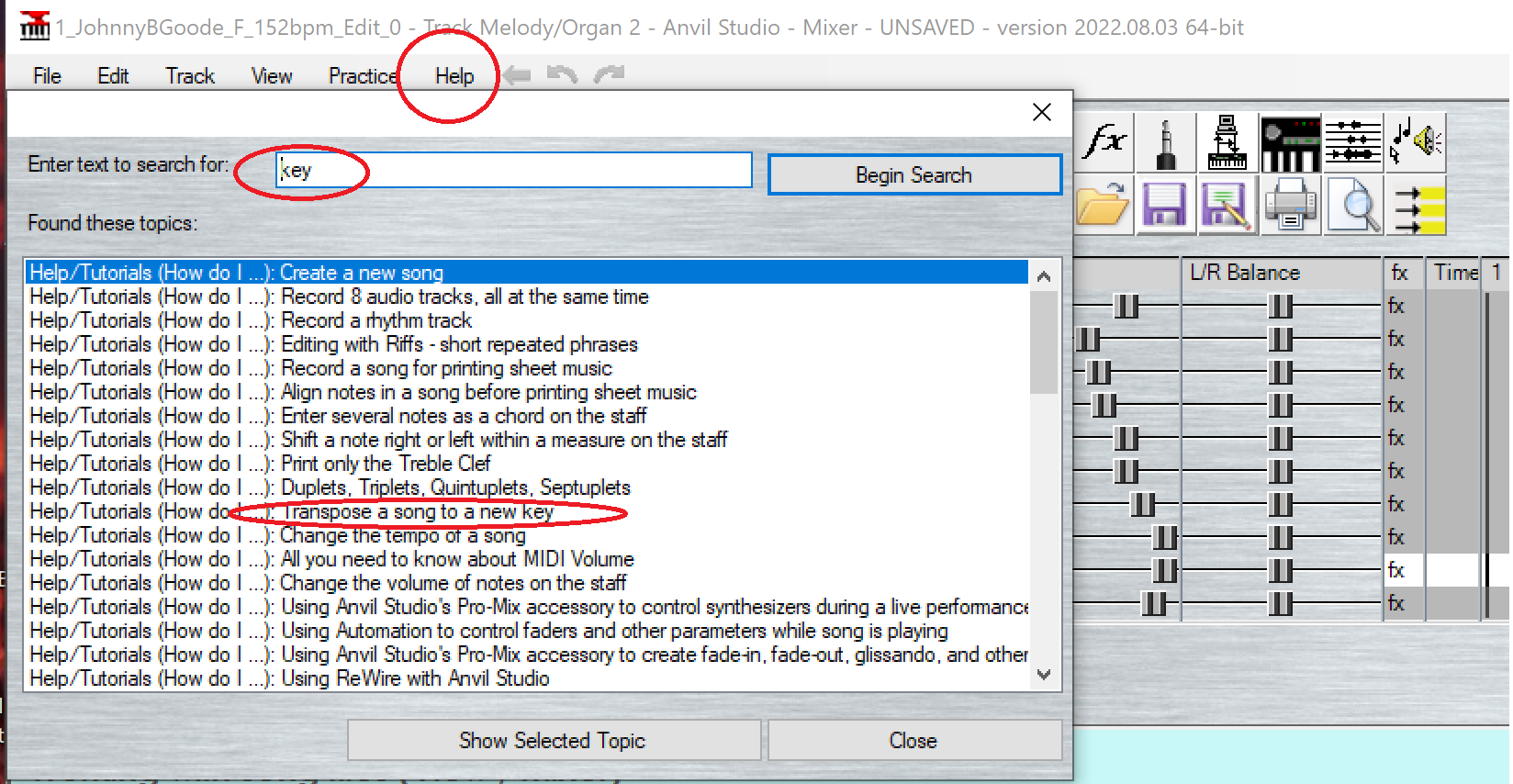
You can get HELP any time in ANY software!
And . . . there's this cool tool you also have in just about ALL software!
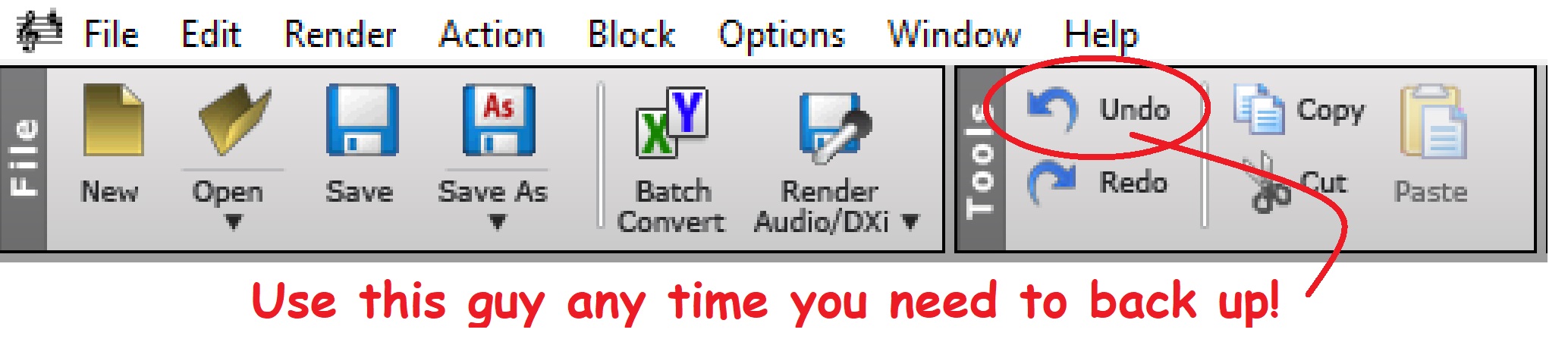
MESS UP? BACK UP!
So there you have it. What an editor looks like. Now we can go back to the tutorials
and continue on our way to actually editing a MIDI!.
Click here to finally go to the SEQUENCING tutorials...
Click to go back to the main Tutorials and Workshops Directory
Wayne's Corner Directory
Here's the theory tutorial in PDF format.
If you want it in a .doc or other Word format, 
Click here and scroll to the bottom. Download the theory article.
Download which ever format you like. And read it. Just read it! In no time
you'll know more theory than probably anyone you know! Read it until you
GET IT! And you'll become the theory go-to guy or gal in your music circle!
Just 11 pages with a LOT of PIX!
If you're a musician, what ever the instrument, this will help you tremendously. If you're
a blues harp or harmonica player, you'll find this info the answer to ALL of your questions.
It's time for YOU to be IN THE KNOW!
Wayne (Reed) Knazek ~ Email Me Here! ~ My personal Web site

Join The MidKar Site Backing Tracks Support Group Forum

Search All Of MidKar Here ~ 43,736+ FREE Backing Tracks/
MIDI Files, KARS and BIAB files PLUS 23 User Styles 256 pages!
MidKar Member's Site Directory
HOME Page
SITEMAP
Please help keep us online with a small donation!
This site is free for all. The tutorials, workshops. 43,813 MIDI, KAR &
BIAB backing tracks files, 23 BIAB User Styles. A FREE SoundFont,
Timbres of Heaven. Free MIDI players and editor!
The fees for a site this large (Nearly 200 pages with over 50K files)
is pretty high, as you can imagine.
Please consider making a small donation to help keep us online. It
would help so much! Thanks! Wayne
PS: I pay for the site and all hosting, security and domain related
expenses out of pocket. Donations appreciated. Please click the link below.